
Protect your iPhone like a pro: simple steps to stop trackers, hackers, and unwanted eyes from snooping on your data.

nanadwumor

-
Lockdown Mode protects against spyware and government-level attacks
-
Blocks message attachments, links, previews, and many FaceTime calls
-
Restricts certain Apple services, web features, and Safari fonts
-
Access via Settings > Privacy & Security > Lockdown Mode
RECOMMENDED ARTICLES
Use This App To Automatically Hide Faces and Obscure Metadata From Photos
Did you know photos often include GPS coordinates by default? Get rid of them for security reasons. Discretion removes all photo metadata, including device, camera settings, and GPS Face...

Do You Know Your Single Gmail Has Unlimited Addresses?
Turn one email into endless addresses: simple Gmail tricks to stop spam, protect your privacy, and manage free trials effortlessly. Gmail allows unlimited variations using plus (+) addressing...
Top 10 Hacks for Online Privacy That You Should Know By Now
Protect your digital life: simple hacks to keep your data safe, stop trackers, and stay private online. Password managers improve online security Generate strong, unique passwords automatically...
Staying discreet becomes challenging when modern gadgets remain online at all times. Thankfully, Apple phones offer many smart adjustments that reduce unwanted monitoring and outside observation. Options range from changing software access rules to adding physical display shields that block prying eyes. Below are ten practical techniques worth adopting to keep personal activity less exposed.
Digital safeguards cannot stop nearby eyes from catching passcodes or watching activity. A physical display filter, however, blocks side views effectively. I noticed this personally when someone attempted to share content on a handset, yet nothing was visible unless the device faced me directly.
Such overlays allow comfortable use in crowded areas without concern about strangers watching. Still, drawbacks exist. The surface often feels less premium than bare glass, and visual output becomes dimmer. That reduction may matter outdoors under strong light, though it never bothered me. Accepting these trade-offs makes this option an affordable and practical step toward greater discretion.
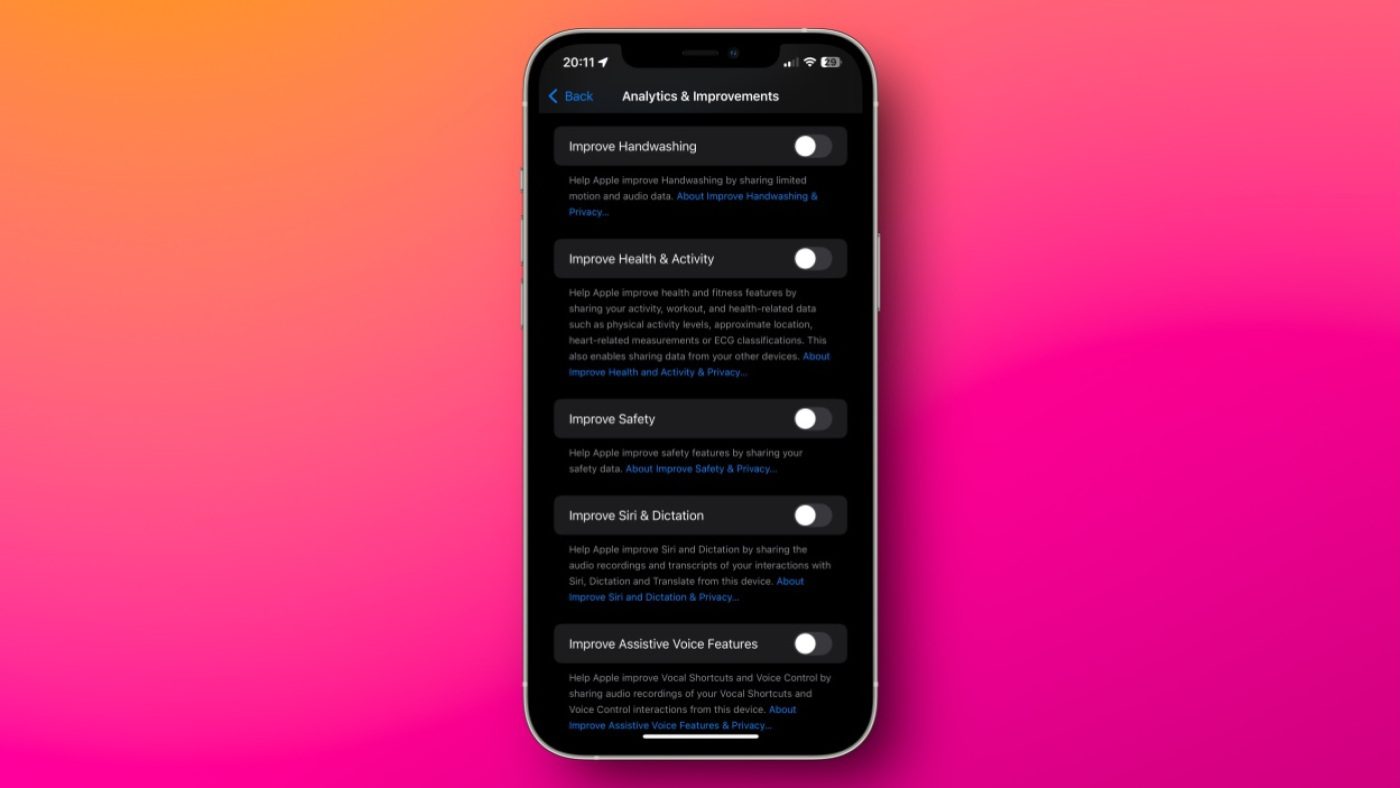
Despite its long-standing reputation for user protection, the brand behind the iPhone has recently shifted direction. Promotional content now appears inside native tools and alert banners, while constant prompts push paid offerings. There is no full way to stop this messaging at the source, yet a few adjustments can reduce how much promotion and usage information is gathered.
Several controls inside the phone’s configuration area allow you to limit internal monitoring and targeted promotion. By carefully reviewing usage reporting, marketing personalization, and background location behavior, you can significantly cut down unnecessary collection. Taking time to switch off features you do not need meaningfully reduces how much information the platform gathers about you.
Earlier on, I approved every access request without much thought whenever a new tool launched. With time, that habit caused constant alerts, excess information harvesting, and fast power loss when movement tracking stayed active. That experience pushed me to change approach: block everything by default unless operation truly depends on it. Almost nothing earns approval—alerts, address books, movement data, imaging hardware, audio input, or stored media usually stay locked.
Recent system updates now offer finer control. You can grant limited file sharing, allow only rough positioning, or approve select entries instead of full libraries. These controls live inside the device’s protection section and remain adjustable even after installation, making it easy to tighten exposure at any moment.
Even with built-in consent controls enabled, information exposure is not fully prevented. Native software typically reaches deeper into device details than browser-based access. For that reason, choosing mobile sites over installed tools can significantly limit what gets shared. Removing platforms like social networks from your device and signing in through a browser instead sharply reduces exposure, since built-in browser safeguards interrupt or strip much of what would normally be collected.
Another upside appears as well: browser access tends to feel less engaging, which naturally cuts endless scrolling habits. This method has worked well for me across several platforms, though certain services still require installation and cannot be replaced entirely.
Adding traffic filters and network shields can greatly improve protection on a smartphone. Browser-based blockers help reduce intrusive monitoring, though they usually work only inside the default web viewer. For broader coverage, a secure domain-routing service is a smart addition. Encrypted lookup tools stop promotional content and hidden observers across most software while also reducing exposure to certain digital threats.
Every owner of an Apple handset should activate the built-in emergency review tool. This option gives an instant overview of which people or programs can view sensitive details, including login credentials, movement records, real-time position, schedules, saved thoughts, and similar information. Accessing it reveals a guided walkthrough that highlights shared access and allows quick adjustments, plus the ability to add a trusted contact for urgent situations.
Although the same controls exist scattered throughout the system menus, this guided feature gathers everything into one place. That consolidation removes the need to hunt through numerous sections and makes securing personal details faster, clearer, and far more efficient.
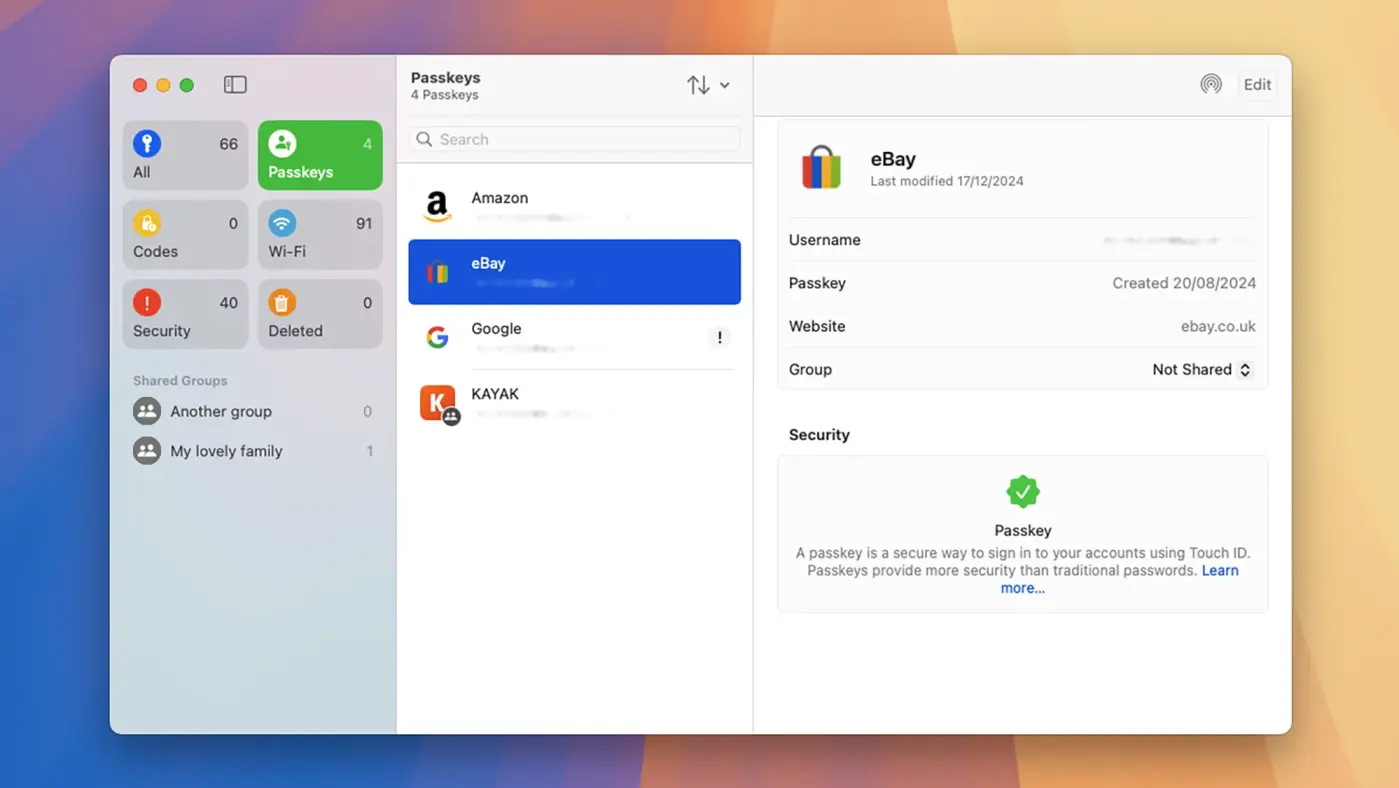
Using a reliable login manager is essential. Free tools, like the system’s built-in option or BitWarden, help generate strong, unique codes for every site, reducing the chance of account breaches. They also store verification codes to add another layer of protection.
Some of these tools support passkeys, which remove the need to memorize passwords and offer stronger resistance against phishing attempts. This makes accessing accounts safer and simpler.
Turning on encryption for saved data is highly recommended. This applies to cloud backups and messaging app archives. Encrypted backups scramble information, making it unreadable without the correct password or PIN, protecting against unauthorized access.
The risk: forgetting the password locks you out of your own backup. Using a login manager to store these keys ensures you can always recover your information when needed.
This tip isn’t limited to Apple devices but is still valuable for staying private online. Social posts, images, and videos can reveal more about you than expected.
Photo files often carry “Exif” details, showing camera type, settings, and location. Removing this information before sharing keeps your posts safe without needing to stop posting altogether.
Few users will ever require the extreme protection of Lockdown Mode, which is built for threats like state-level spying or advanced malware.
The feature blocks attachments, links, previews in messages, most FaceTime calls, certain Apple services, web technologies, fonts, and more.
While unnecessary for everyday use, knowing how to activate it ensures you can respond quickly if a serious threat appears. Access it through Settings > Privacy & Security > Lockdown Mode.
Join Our Telegram Group
Join Our WhatSapp Group
You May Also Like…
Use This App To Automatically Hide Faces and Obscure Metadata From Photos
Did you know photos often include GPS coordinates by default? Get rid of them for security...
Do You Know Your Single Gmail Has Unlimited Addresses?
Turn one email into endless addresses: simple Gmail tricks to stop spam, protect your privacy, and...
Top 10 Hacks for Online Privacy That You Should Know By Now
Protect your digital life: simple hacks to keep your data safe, stop trackers, and stay private...
0 Comments